A USB (Universal Serial Bus) connector, or a USB interface, is an electronic part that facilitates the connection between a computer and peripheral devices such as printers, scanners, keyboards, and mice. It is part of the USB applications, they are designed to support data transfer and power supply between devices, and they are known for their plug-and-play functionality, allowing users to connect devices without needing to restart the computer.
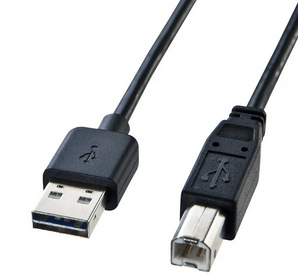
Types of USB Connectors
USB Types Descriptions
Up to now, there are many types of USB interfaces, as shown in the following:
1. USB Type-A
• The standard rectangular connector found on most computers and chargers.
• Commonly used for connecting peripherals like keyboards, mice, and flash drives.
2. USB Type-B
• Square-shaped connector typically used for printers and some external hard drives.
• Variants include USB Type-B Mini and Type-B Micro.
3. USB Type-C
• Reversible connector that can handle power, data, and video.
• Gaining popularity in laptops, smartphones, and other devices due to its versatility.
4. USB Mini
• Smaller than Type-B, often used in older portable devices like cameras and MP3 players.
5. USB Micro
• Smaller than Mini, widely used in smartphones and tablets.
• Variants include Micro-A and Micro-B, with Micro-B commonly used for charging and data transfer.
6. Apple Lightning
Although it is not a USB standard, the Lightning interface used by Apple devices is also a common charging and data transmission interface.
USB Classification by Size
|
Main Types
|
USB Type-A
|
USB Type-B
|
USB Type-C
|
|
Size
|
• Standard
• Mini
• Micro
|
• Standard
• Mini
• Micro
|
Only one size
|
|
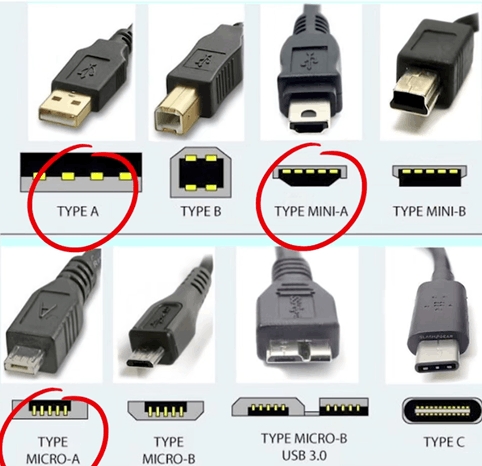
Figure 2: Main Types of USB Connectors
|
USB Type-A
1. Subcategories
There are several types of USB Type-A, the most common is the standard type. Also there is a non-standard small Type-A USB port (basically eliminated):
• Mini Type-A
• Micro Type-A
• USB3.0 Micro Type-A
2. Standard Type-A USB Classification
• USB 2.0 (4 metal contacts)
• USB 3.0 (9 metal contacts)
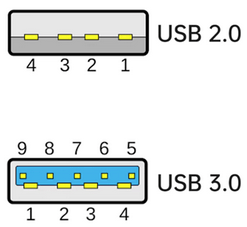
Figure 3: Standard Type-A USB Metal Contacts
Note: Although blue USB ports are generally USB 3.0, it is much more accurate to distinguish USB 2.0 and USB 3.0 by looking at the contacts rather than by color.
3. Type-A USB Pinouts Description
|
USB TYPE A 2.0 PINOUTS
|
|
Pin
|
Signal
|
Description
|
|
1
|
VBUS
|
+5V
|
|
2
|
D-
|
Data-
|
|
3
|
D+
|
Data+
|
|
4
|
GND
|
Ground
|
|
USB TYPE A 3.0 PINOUTS
|
|
Pin
|
Signal
|
Description
|
|
1
|
VBUS
|
+5V
|
|
2
|
D-
|
Data-
|
|
3
|
D+
|
Data+
|
|
4
|
GND
|
Ground
|
|
5
|
SSRX-
|
USB 3.0 signal receiving line
|
|
6
|
SSRX+
|
USB 3.0 signal receiving line
|
|
7
|
GND
|
Ground
|
|
8
|
SSTX-
|
USB 3.0 signal transmission line
|
|
9
|
SSTX+
|
USB 3.0 signal transmission line
|
4. Advantages of Type-A USB Interface
The Type-A USB interface is a standard connector, which means it is widely recognized and supported across different manufacturers and devices because of several advantages:
1) Widespread Compatibility: It’s the most common USB connector, found on virtually all computers and many peripherals. What’s more, type-A USB is compatible with the serial port and supports hot plugging, and Intel does not charge patent fees.
2) Ease of Use: The rectangular shape is easy to insert and offers a straightforward design.
3) Established Standard: Type-A has been around since the inception of USB, ensuring robust support across devices.
4) Power Delivery: It can provide power to devices, making it versatile for charging and data transfer.
5) Affordable: Type-A connectors and cables are generally low-cost and readily available.
USB Type-B
1. Subcategories
There are several types of USB Type-B:
• Standard Type-A
• Mini Type-B(2.0/3.0)
• Micro Type-B
• USB3.0 Micro Type-B
2. Standard Type-A USB Classifications
• USB 2.0 (4 metal contacts)
• USB 3.0 (9 metal contacts), compatible with 2.0
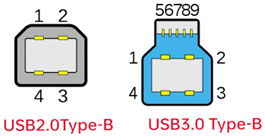
Figure 4: Standard Type-B USB Metal Contacts
3. Mini USB Type-B
Commonly found on old devices, because it only has 5 metal contacts and only supports USB 2.0 (Mini B).
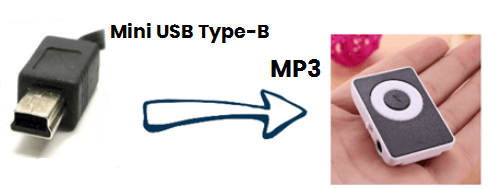
Figure 5: Mini USB Type-B on MP3
4. Micro USB Type-B
• Micro Type-B (2.0 Android port)
• USB3.0 Micro Type-B
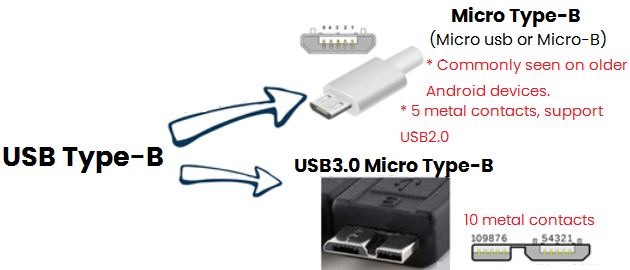
Figure 6: Micro USB Type-B
5. Type-B USB Pinouts Description
|
USB TYPE B PINOUTS
|
|
Pin
|
Signal
|
Description
|
|
1
|
VBUS
|
+5V
|
|
2
|
D-
|
Data-
|
|
3
|
D+
|
Data+
|
|
4
|
GND
|
Ground
|
|
Micro USB PINOUTS
|
|
Pin
|
Signal
|
Description
|
|
1
|
VBUS
|
+5V
|
|
2
|
D-
|
Data-
|
|
3
|
D+
|
Data+
|
|
4
|
ID
|
OTG USB
|
|
5
|
GND
|
Ground
|
|
Mini USB PINOUTS
|
|
Pin
|
Signal
|
Description
|
|
1
|
VBUS
|
+5V
|
|
2
|
D-
|
Data-
|
|
3
|
D+
|
Data+
|
|
4
|
ID
|
OTG USB
|
|
5
|
GND
|
Ground
|
USB Type-C/Type-C/USB C
USB Type-C is a versatile connector used for data transfer and charging. It features a reversible design, meaning you can plug it in either way, which adds convenience. USB-C supports various protocols, including USB 3.2, Thunderbolt 3, and DisplayPort, allowing it to handle high-speed data transfers and video output.
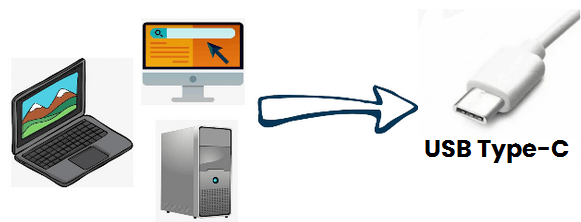
Figure 7: Powerful USB Type-C
1. Key Features
USB Type-C has several notable features that set it apart from other USB connectors:
1) Reversible Design: The connector can be plugged in either way, eliminating the frustration of trying to insert it the wrong way.
2) High Data Transfer Speeds: Supports USB 3.1 and USB4 standards, enabling data transfer speeds up to 40 Gbps, depending on the version.
3) Power Delivery (PD): Capable of delivering up to 100 watts of power, allowing for faster charging of devices, including laptops.
4) Versatility: Can carry power, data, and video signals, making it suitable for various applications like connecting monitors and external storage.
5) Universal Compatibility: Designed to be a universal connector, it can replace many older connectors, streamlining device connections.
6) Enhanced Durability: Typically more robust than previous USB types, with a design that can withstand more insertion cycles.
7) Support for Alternate Modes: Allows for different protocols (like HDMI and DisplayPort) to run over the same USB Type-C connection, increasing flexibility.
8) Small Size: Compact design makes it ideal for slim and portable devices.
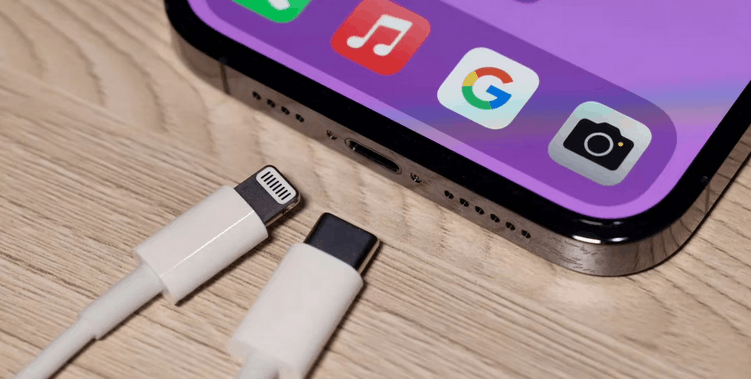
Figure 8: Apple's USB Type-C for iPhone
2. Type-C USB Pinouts Description
|
USB TYPE C PINOUTS
|
|
Pin
|
Signal
|
Description
|
Pin
|
Signal
|
Description
|
|
A1
|
GND
|
Ground
|
B1
|
GND
|
Ground
|
|
A2
|
SSTXP1
|
USB 3.0/3.1 signal transmission line, positive
|
B2
|
SSRXP1
|
USB 3.0/3.1 signal transmission line, positive
|
|
A3
|
SSTXN1
|
USB 3.0/3.1 signal transmission line, negative
|
B3
|
SSRXN1
|
USB 3.0/3.1 signal transmission line, negative
|
|
A4
|
VBUS
|
Bus power
|
B4
|
VBUS
|
Bus power
|
|
A5
|
CC1
|
Configuration channel
|
B5
|
SBU2
|
Sideband use
|
|
A6
|
DP1
|
D+
|
B6
|
DN2
|
D-
|
|
A7
|
DN1
|
D-
|
B7
|
DP2
|
D+
|
|
A8
|
SBU1
|
Sideband use
|
B8
|
CC2
|
Configuration channel
|
|
A9
|
VBUS
|
Bus power
|
B9
|
VBUS
|
Bus power
|
|
A10
|
SSRXN2
|
USB 3.0/3.1 signal receiving line, negative
|
B10
|
SSTXN2
|
USB 3.0/3.1 signal receiving line, negative
|
|
A11
|
SSRXP2
|
USB 3.0/3.1 signal receiving line, positive
|
B11
|
SSTXP2
|
USB 3.0/3.1 signal receiving line, positive
|
|
A12
|
GND
|
Ground
|
B12
|
GND
|
Ground
|
USB Versions
USB has gone through several versions, each improving upon the previous one in terms of speed, power delivery, and functionality. Here's a quick overview:
1. USB 1.0 and 1.1
• Introduced in the 1990s, offering speeds from 1.5 Mbps (Low-Speed) up to 12 Mbps (Full-Speed).
2. USB 2.0
• Released in 2000, supports speeds up to 480 Mbps (High-Speed).
• Widely used for a variety of devices.
3. USB 3.0
• Introduced in 2008, offers speeds up to 5 Gbps (often referred to as USB 3.1 Gen 1, SuperSpeed).
4. USB 3.1
• Released in 2013, supports speeds up to 10 Gbps (known as USB 3.1 Gen 2, SuperSpeed+).
• Improved power delivery and data transfer capabilities.
5. USB 3.2
• Introduced in 2017, with speeds up to 20 Gbps using dual-lane operation.
6. USB4
• Announced in 2019, capable of speeds up to 40 Gbps.
• Integrates Thunderbolt 3 compatibility and enhanced data management.
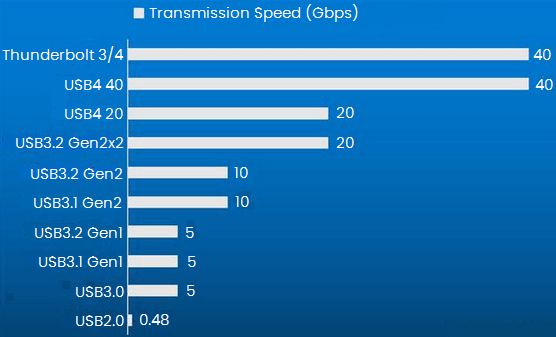
Figure 9: Comparison of Theoretical Transmission Speeds of Different USB Versions
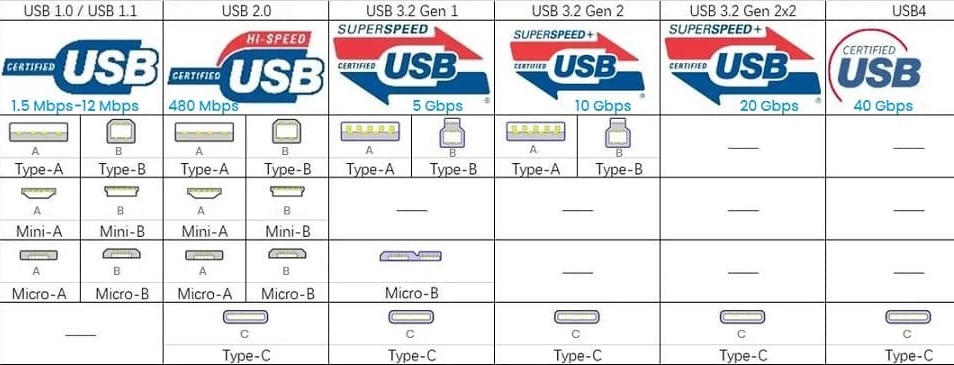
Figure 10: Compatible Versions of Different USB Connectors
Each version generally maintains backward compatibility, meaning newer USB ports can work with older USB devices, although speeds will be limited to the older standard. And each version can be used with USB Type-C connectors, but not all USB-C ports support the same speeds or power delivery capabilities. It’s always good to check the specifications of your devices.
You May Also Like
HDMI vs. DisplayPort: Which One is Better?

 English